View Transaction History
Applies to: Finance Managers, Administrators, Auditors
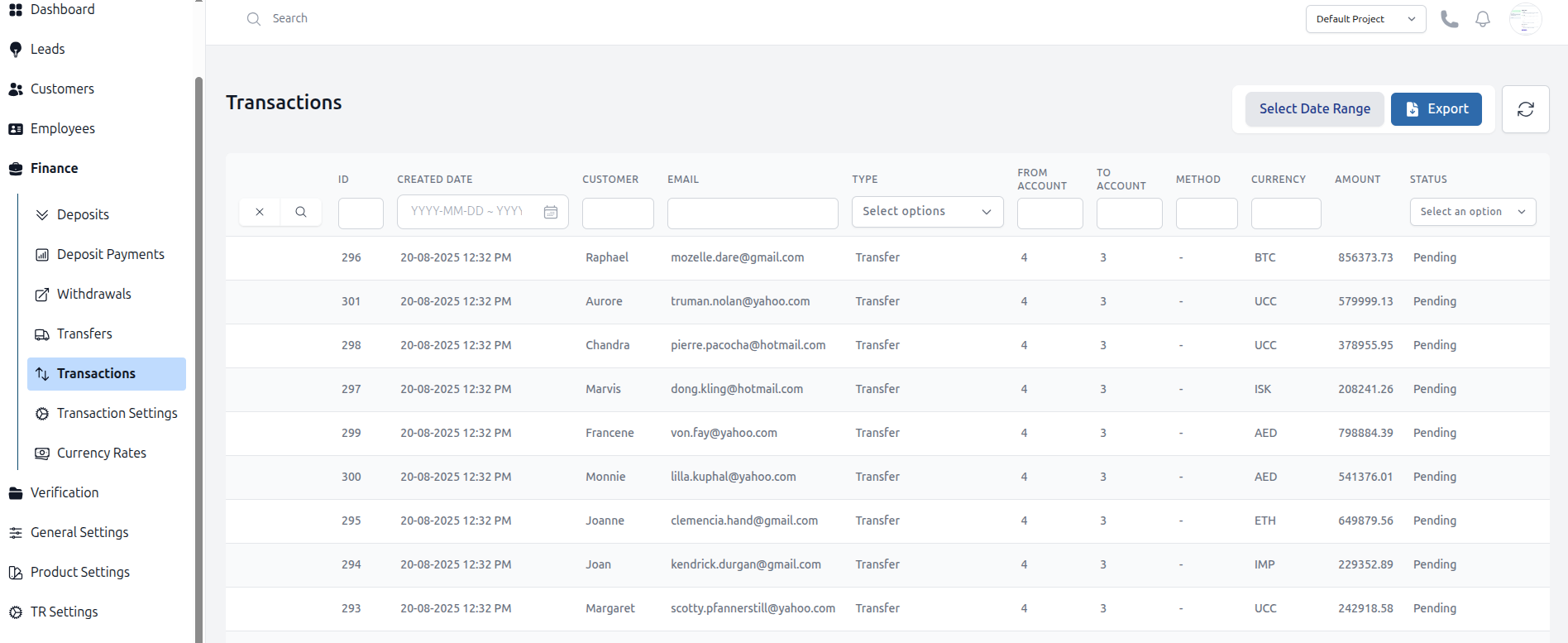
The Transactions section provides a complete, filterable audit trail of all financial activities across the platform, including deposits, withdrawals, and transfers.
Accessing the Transaction List
- Navigate to Finance > Transactions.
- You are presented with a table showing all transactions. Key columns include:
- ID: A unique identifier for the transaction.
- Date & Time: When the transaction occurred.
- Customer: The customer involved.
- Type: The transaction type (e.g., Deposit, Withdrawal, Transfer, Bonus).
- Amount: The transaction amount.
- Status: The final status (e.g., Approved, Rejected, Pending).
Filtering the Data
The powerful filters allow you to find specific transactions for reconciliation or investigation.
- Date Range: Filter transactions by a specific day, week, or custom range.
- Customer: Search for transactions for a specific customer by name, email and ID.
- Type: Filter by one or multiple transaction types.
- Status: Show only Approved, Rejected, or Pending transactions.
- Wallet/Accoount: Filter for transactions from Wallet/Account id.
Exporting Data
For record-keeping or external analysis, you can export the filtered data.
- Apply your desired filters to narrow down the list.
- Click the Export button (usually CSV or Excel format).
- The file will be generated based on the currently filtered view.