Create a New Project (Brand)
Applies to: Administrators
Projects represent individual brands or white-label portals in your system. Each project has its own configuration, assigned employees, and client access.
View Available Projects
- Navigate to General Settings > Projects.
- You will see a list of all existing Projects.
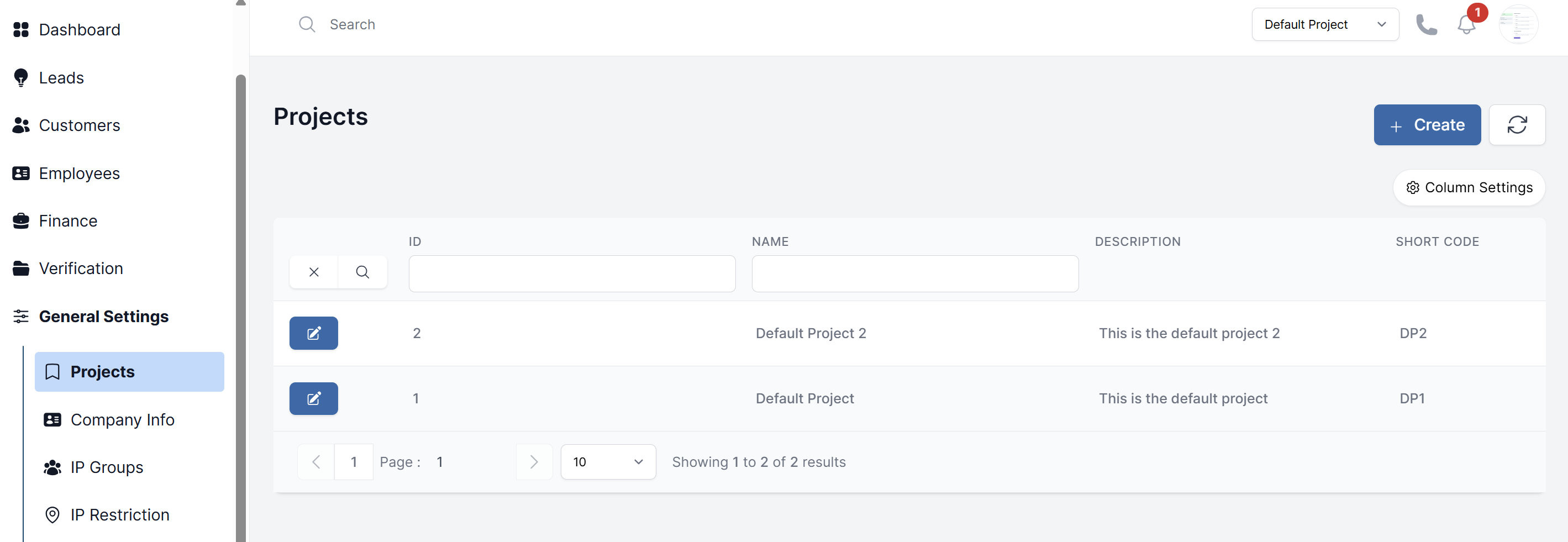
Steps to Create a Project
- Navigate to General Settings > Projects.
- Click the Create button.
- Fill in the Master Data:
- Name: The full name of the brand (e.g., "AlphaCapital Markets").
- Short Code: A unique internal code (e.g., "ACM").
- Description: Internal notes about the project.
- Click Submit to create the project. You can now configure its details.
Configuring a Project
After creation, click on the project to edit it. You will find several tabs:
Members
-
Assign Employees: Select and add employees this specific project.
-
Unassign Employees: Select and remove employees from this project.
Configuration
- Trader Configurations: Set terms and conditions links, enable/disable demo accounts, and select the margin calculation method.
- Trading Platform Information: Upload the brand's logo, set the platform name, email, and Traders Room URL for this project.