Review KYC Documents
Applies to: Administrators, Compliance Officers
This article explains how to find, review, and make decisions on customer-submitted KYC (Know Your Customer) documents for identity verification.
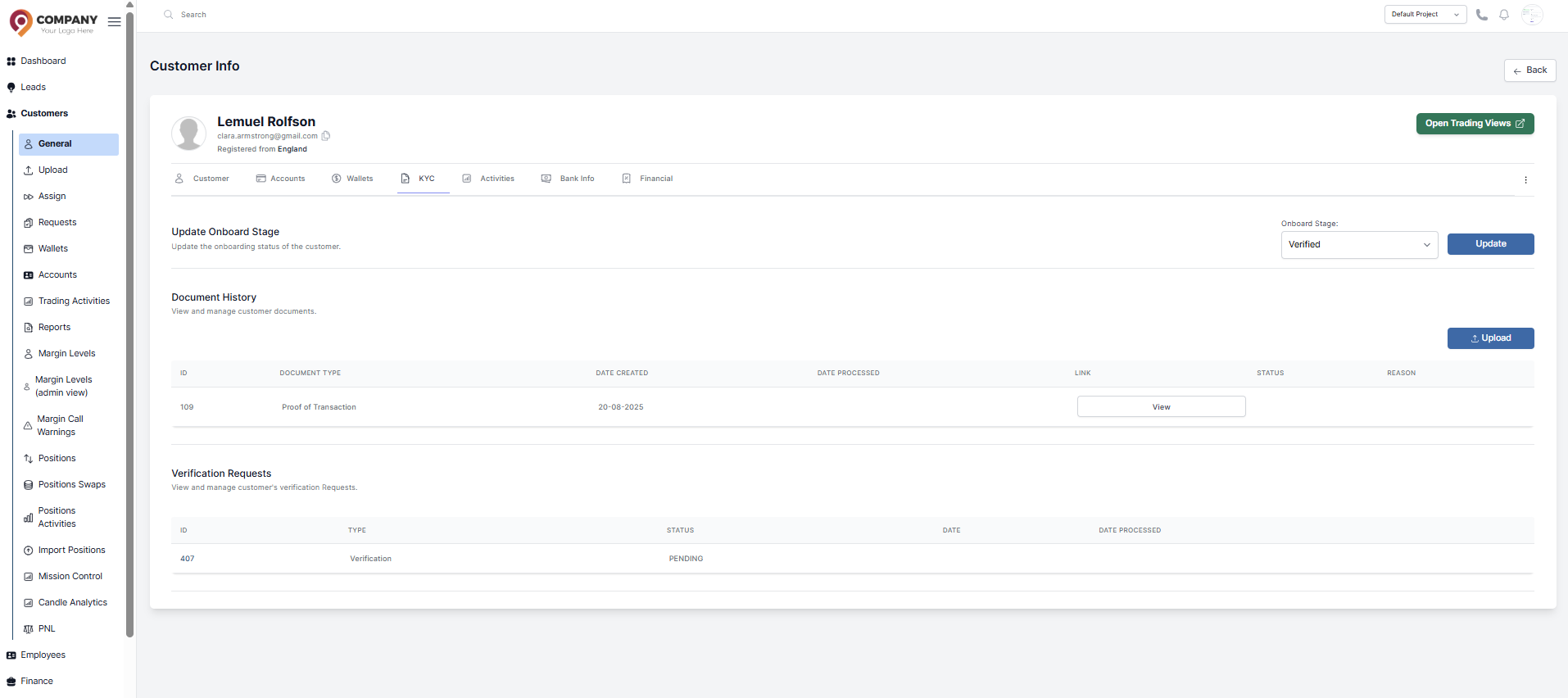
Accessing Submitted Documents
- Go to Requests in the main sidebar under Customer.
- Filter Verification requests from Type. You will see a list of all submitted documents.
- Use the Status filter to show only documents with a
Pendingstatus.
Reviewing a Document
-
Click on a document row to expand it. This will show:
- Customer name and ID.
- Document type (e.g., Passport, Utility Bill).
- Date of submission.
- Thumbnails of the uploaded files.
-
Click on the thumbnails to open a larger view and inspect the document for:
- Clarity: Is the image clear and all text readable?
- Validity: Is the document current and not expired?
- Authenticity: Does the document appear genuine?
- Matching Information: Does the name and address match the customer's registered profile?
Making a Decision
After review, you have two options:
Approve the Document
- Click the Approve button.
- The customer's KYC status will be updated, potentially moving them to the next Onboarding Stage.
- They may gain access to more features (e.g., higher withdrawal limits).
Reject the Document
- Click the Reject button.
- You must select a reason for rejection from the list configured in TR Settings > Resolutions.
- Add a clear note for the customer (e.g., "The provided utility bill is too blurry to read the address. Please upload a clearer copy.").
- The customer will be notified to upload a new document.
Next Steps
- Approved documents are archived and can be filtered by
Approvedstatus for auditing. - Rejected documents remain in the system with the reason for rejection noted.
Common Issues and Solutions
| Issue | Suggested Action |
|---|---|
| Blurry Image | Reject with reason "Document not clear" and ask for a new photo. |
| Expired Document | Reject with reason "Document expired" and ask for a valid one. |
| Name Mismatch | Reject with reason "Information does not match" and ask for clarification. |
| Wrong Document Type | Reject with reason "Incorrect document type" and specify what is needed. |