Configure Static Pages
Applies to: Administrators, Content Managers
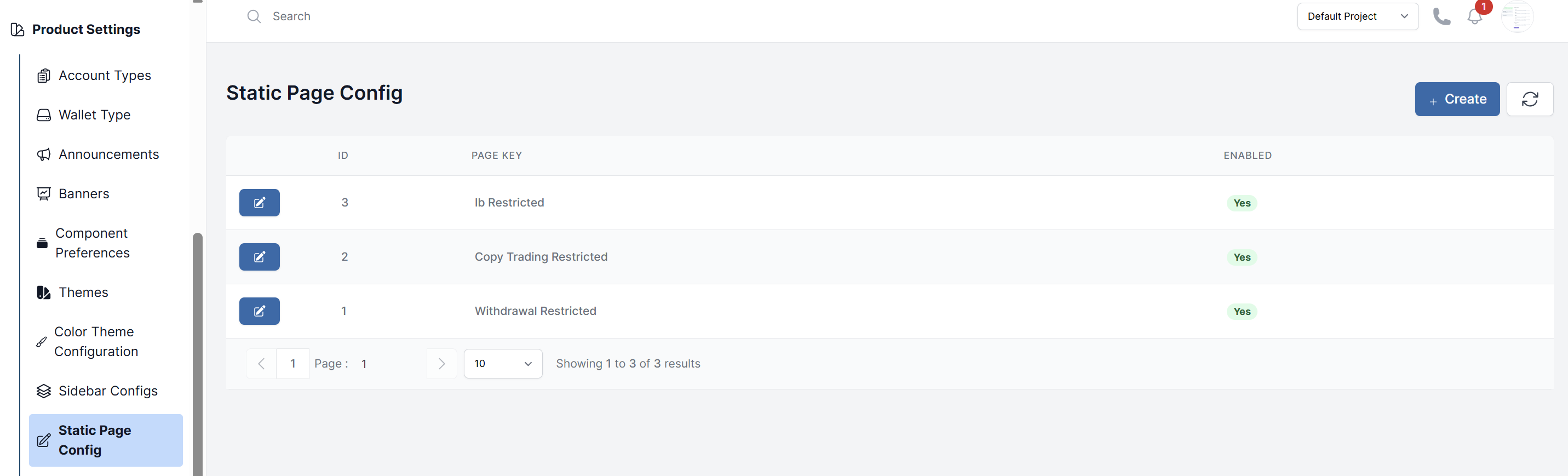
Static Page Config allows you to manage the content of informational pages that don't change frequently, such as Ib Restricted and Copy Trading Restricted.
Accessing Static Pages
- Navigate to Product Settings > Static Page Config
- You'll see a list of available pages
Editing a Static Page
-
Click on the page you want to edit
-
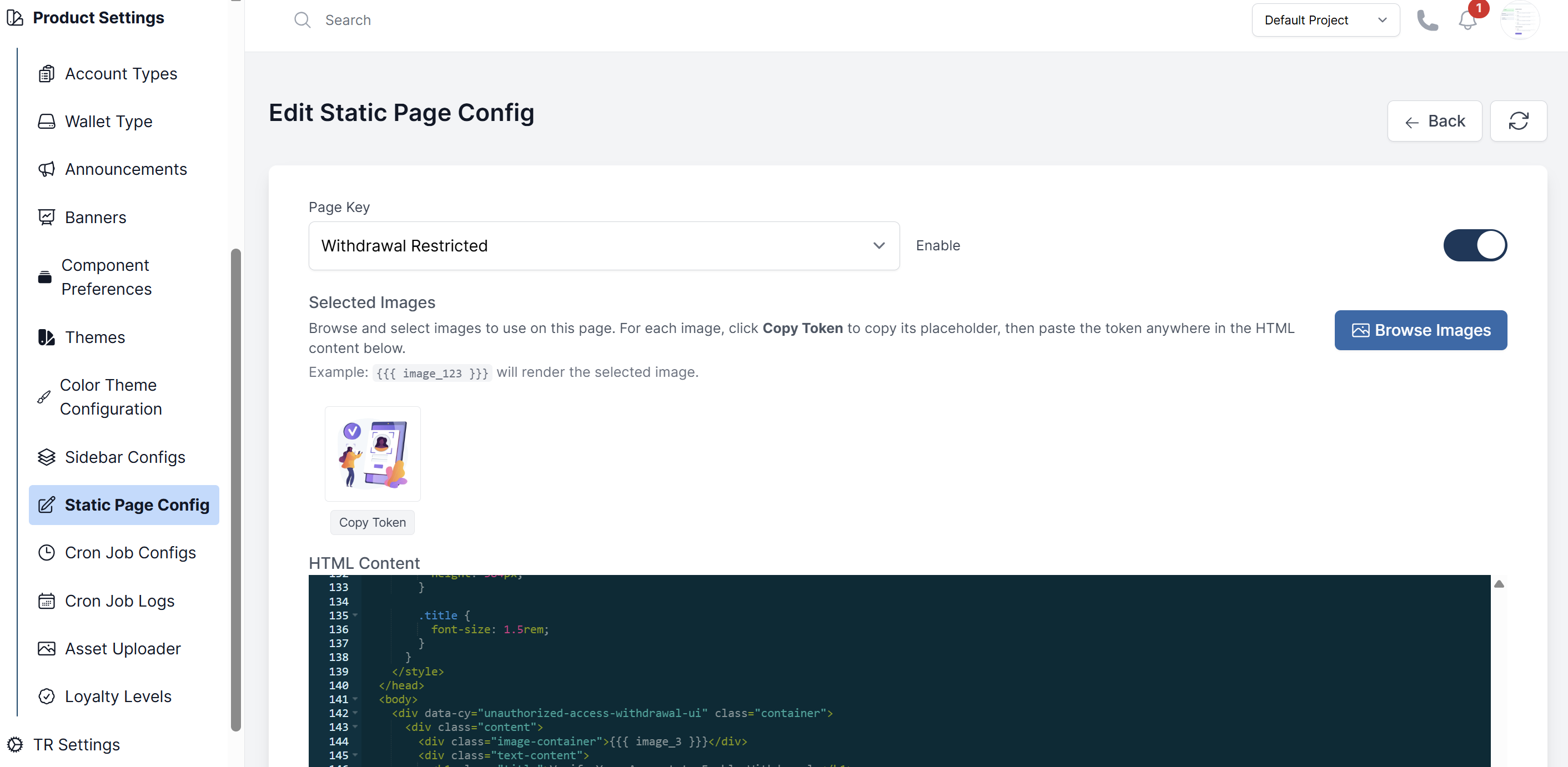
Select Page Key: Choose your page from the "Page Key" dropdown (e.g., "Ib Restricted")
-
Configure Page Settings:
- Enable: Use the toggle switch to enable/disable the page
- Selected Images: Click "Browse Images" to select images for your page
- Copy Token: Click the "Copy Token" button under each image to get the placeholder code
- Image Usage: Paste image tokens like {{{ image_123 }}} in your HTML content to display images
-
Edit HTML Content: Modify your page in the HTML content editor:
- Update HTML structure, text content, and styling
- Use the syntax-highlighted code editor for precise control
- Include CSS styles and custom formatting as needed
-
Preview Your Page: Check the "Preview" section to see exactly how your page will appear to users with all styling and images rendered
-
Save Changes: Click Submit to save your updates or "Cancel" to discard changes
-
Upload images through the Asset Uploader and insert them
Best Practices
- Test Before Publishing: Always check the Preview section before submitting changes
- Use Image Tokens: Copy image tokens and paste them in your HTML content for proper image display
- Keep Backups: Copy your HTML content before making major changes
- Mobile Friendly: Ensure your HTML and CSS work well on different screen sizes
- Enable Status: Remember to toggle the Enable switch to make your page visible to users