Customize the Client Portal Theme
Applies to: Administrators, Marketing Managers
The Traders Room allows for extensive white-labeling of the client portal (where your customers log in) through themes, color schemes, and layout changes.
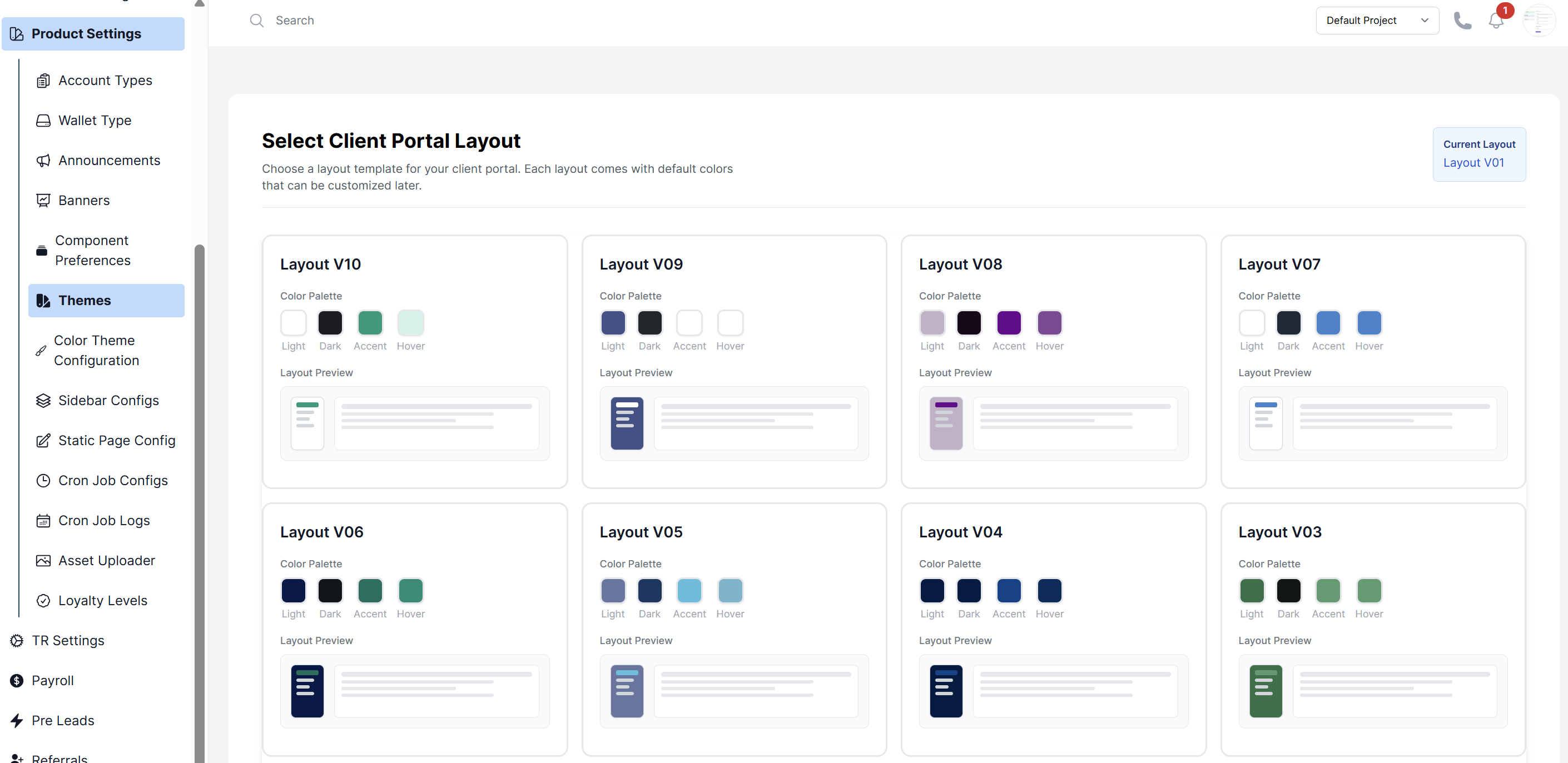
Select a Base Layout
- Navigate to Product Settings > Themes.
- You will see a list of available layout templates.
- Click on itself to select then Click Save Layout Selection to use for your client portal.
Configure Colors (For Layout 1)
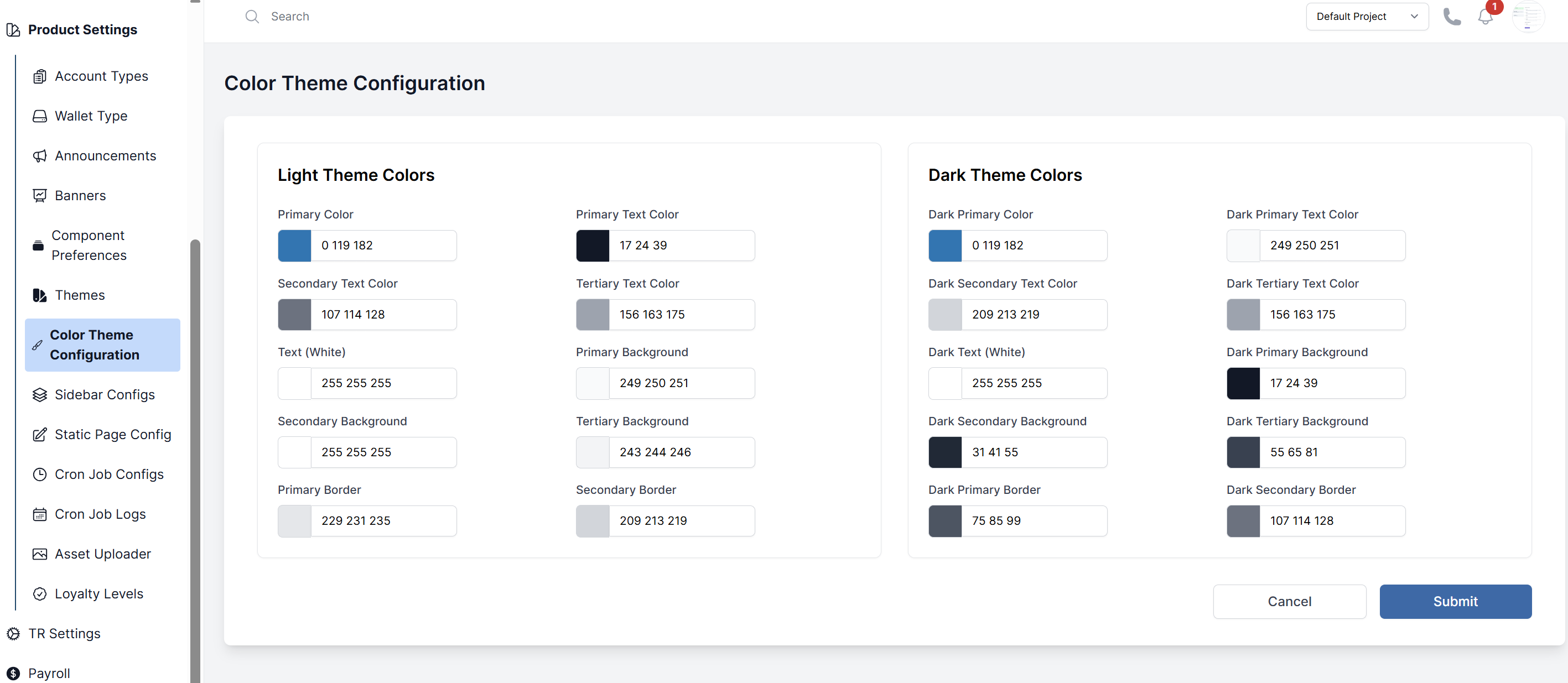
- Navigate to Product Settings > Color theme configuration.
- This section provides a list of color variables.
- Use the color pickers to change values for:
--primary: The primary brand color (used for buttons, links).--secondary: A secondary brand color.--text: Default text color.--background: Page background color.- And many others (borders, success, warning, error colors).
- Changes are often previewed in real-time. Click Save to apply them to the live client portal.
Configure the Navigation Sidebar
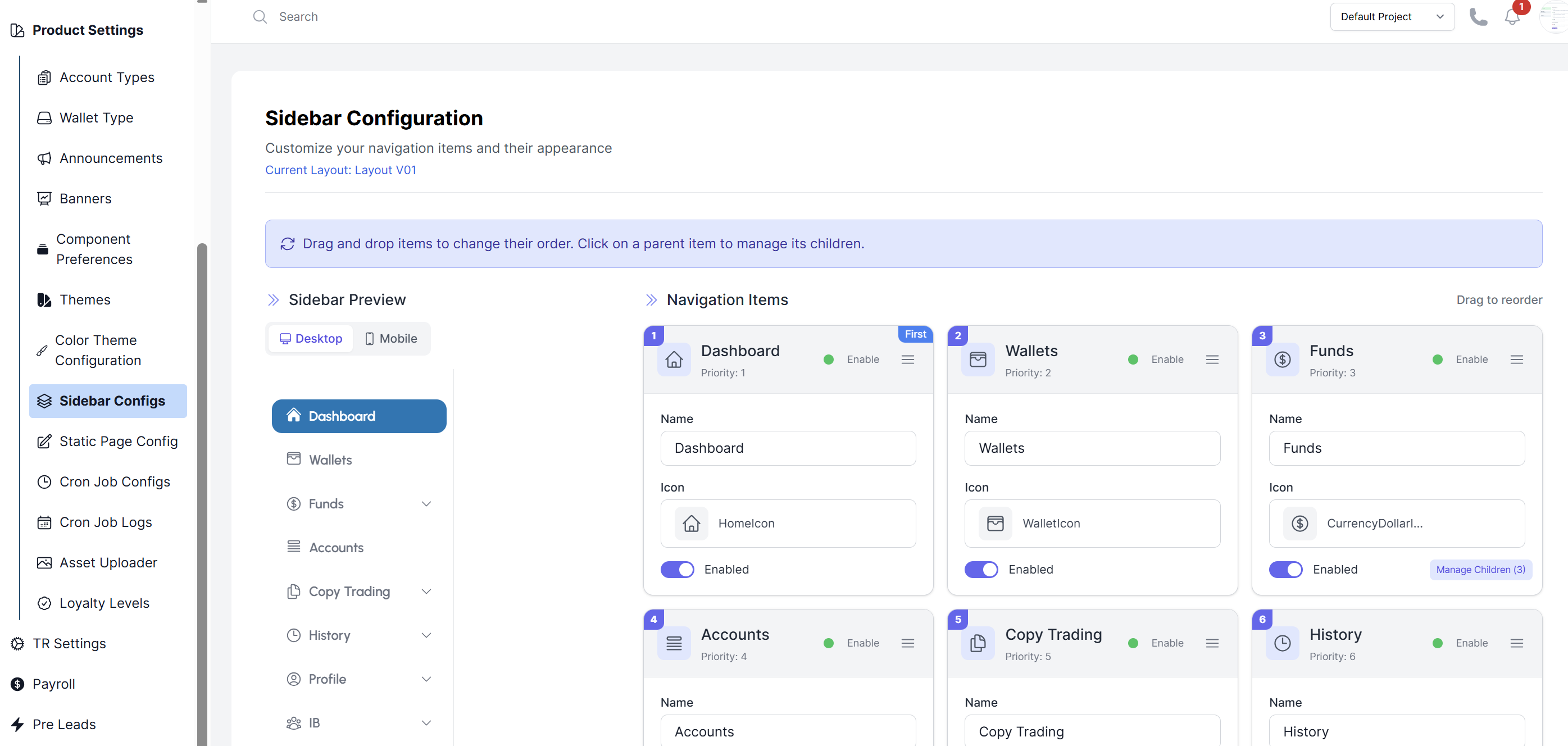
- Navigate to Product Settings > Sidebar Configs.
- Here you can customize the navigation menu that appears in the client portal.
- Reorder Items: Drag and drop to change the menu item order.
- Rename Items: Change the display text of default menu items.
- Change Icons: Upload or select new icons for each menu item.
- Configure Colors: Set different colors for the sidebar in light and dark mode.
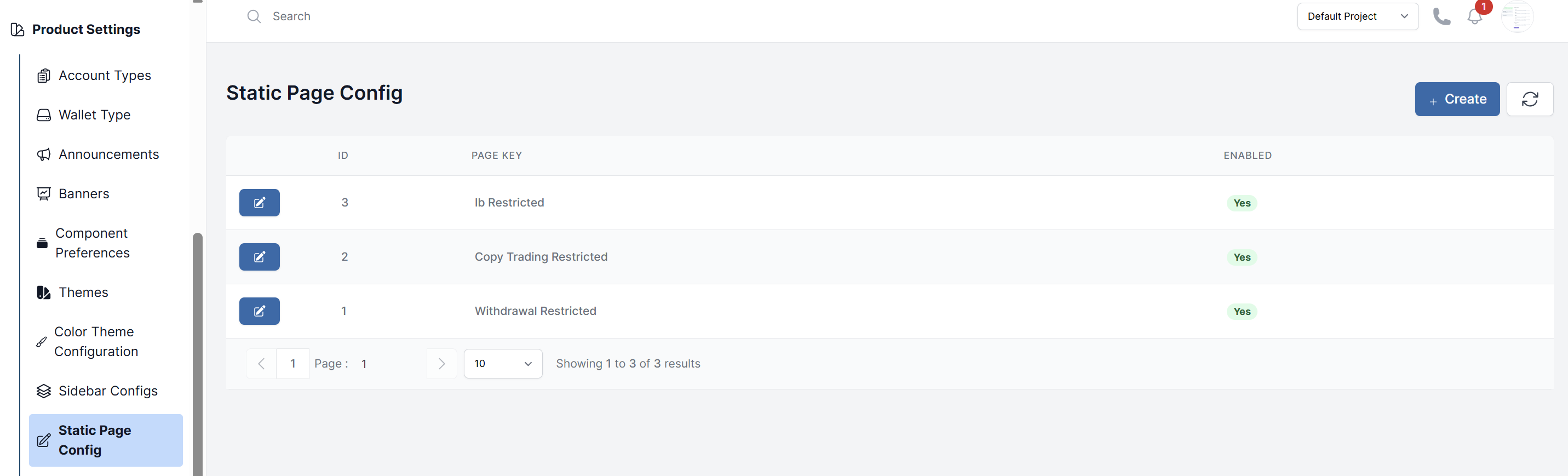
Manage Static Pages
- Navigate to Product Settings > Static Page Config.
- This section allows you to manage content for pages like "About Us", "Terms & Conditions", and "Privacy Policy".
- For each page, you can typically:
- Upload a hero image or background.
- Write or paste HTML content for the page body.
- Set the page title and meta description.