Modify an Email Template
Applies to: Administrators, Marketing Managers
The system uses pre-defined templates for all automated emails (e.g., withdrawal approved, KYC rejected). These templates can be customized to match your tone and branding.
View Email Templates
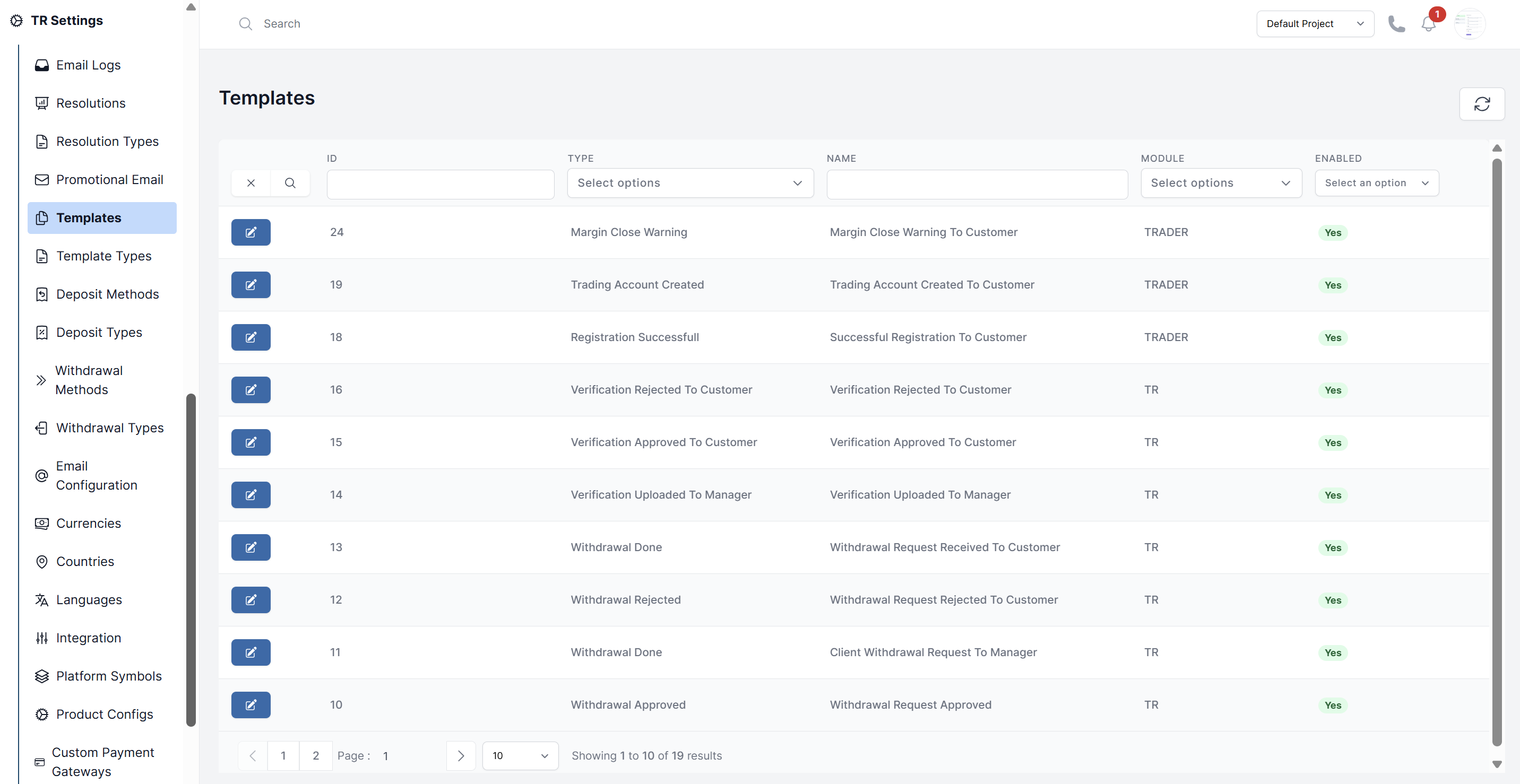
- Navigate to TR Settings > Templates.
Edit a Template
- Navigate to TR Settings > Templates.
- Use search or filters to locate the template you want (e.g., Withdrawal Approved).
- Click on the template to edit it.
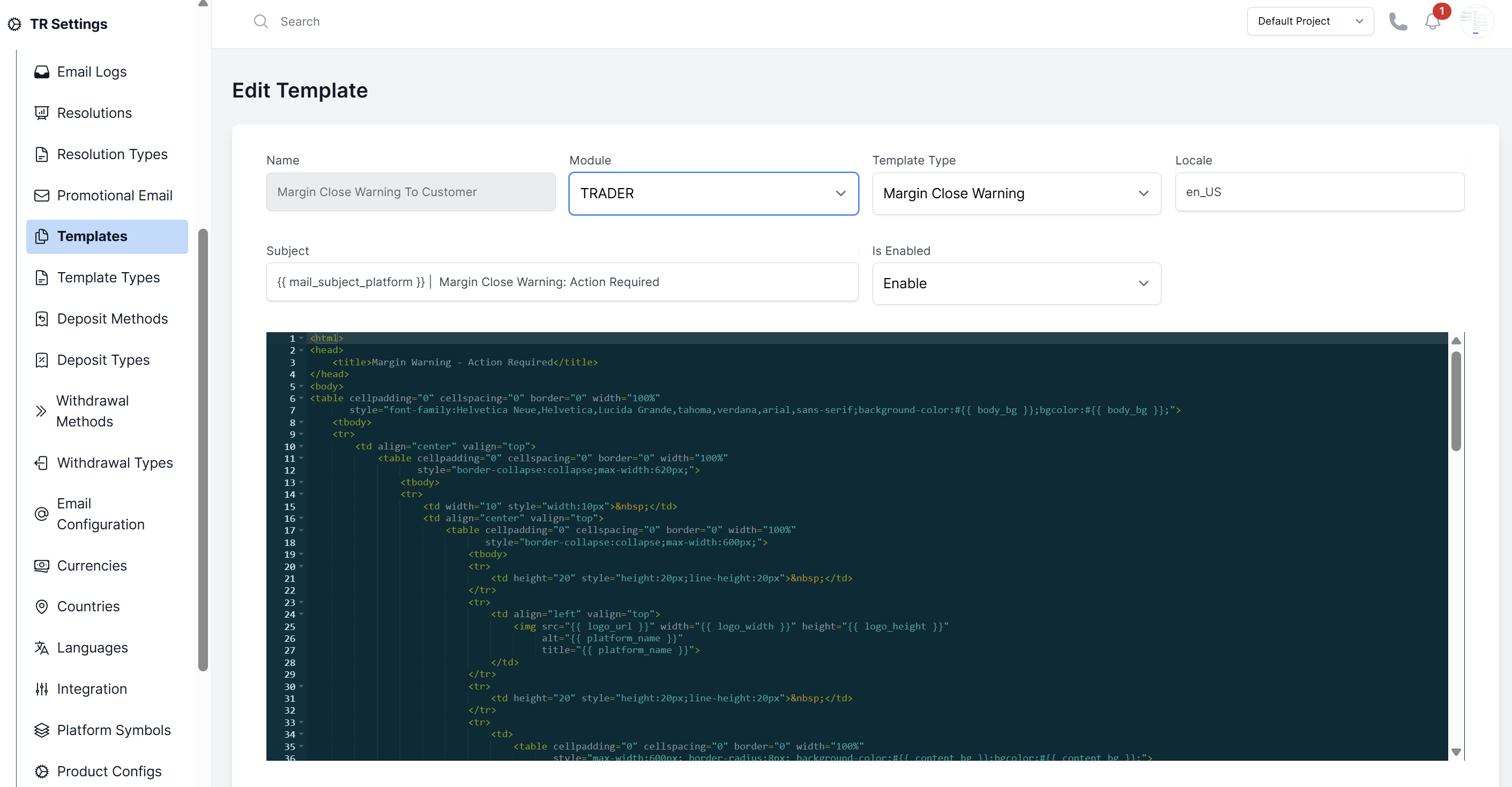
- Update:
- Locale – the language version.
- Subject – the subject line shown in the inbox.
- Content – the HTML body of the email.
- Insert placeholders (dynamic variables) to personalize emails.
- Use the Enable dropdown to activate or deactivate the payment method template.
- Click Submit to apply your changes.
Basic Rules
When editing templates, keep in mind:
- HTML Support: You can use basic HTML elements such as
<p>,<b>,<a>, and<img>. - No SVGs: SVG files are not supported in emails. If you want to include additional images, upload them to a public image cloud and use the HTTPS link inside the
<img>tag. - Inline Styling: Use inline CSS (e.g.,
<p style="color:#333;">) since external stylesheets are not supported. - Logos: The logo size and URL are controlled by system placeholders—do not hardcode them.
- Reset: Once edited, templates cannot be reset to their default version.
- Testing: Always send a test email before enabling changes for customers.
Using Placeholders
Placeholders are dynamic variables that the system replaces with real data when sending emails.
- Correct Format:
{{ first_name }},{{ last_name }}, etc.- Use double curly braces with a single space after the opening brace and before the closing brace.
- Example:
{{ first_name }}✅ - Incorrect:
{{first_name}}❌ or{{ first_name}}❌
- Case-Sensitive: Always match the exact placeholder name defined by the system.
- Supported Types: Text, numbers, URLs (for images/links).
Example Usage in Email Content:
<p>Dear {{ first_name }} {{ last_name }},</p>
<p>Your account {{ account_no }} has reached a margin level of {{ margin_level }}%.</p>
⚠️ If a placeholder is typed incorrectly, it will appear as-is in the email.
Common Placeholders
The following placeholders are available in all templates:
| Placeholder | Description |
|---|---|
{{ current_year }} | Current year (useful in footers) |
{{ platform_name }} | Name of the trading platform |
{{ support_email }} | Customer support email address |
{{ logo_url }} | URL of the platform’s logo |
{{ logo_height }} | Height of the logo (in pixels) |
{{ logo_width }} | Width of the logo (in pixels) |
{{ mail_subject_platform }} | Platform name used in subject lines |
{{ login_url }} | Login URL for the trader’s room |
ℹ️ The logo URL and size are configured from your platform settings.
Projects > edit > Configuartion > Trading Platform Configurations > Email Info
1. Margin Call Email Templates
The following templates are used to notify customers about margin-related issues. Margin Call emails notify customers when their account margin level is below a critical threshold.
Template Names:
- Deposit Warning to Customer:
deposit_warning_to_customer - Trading Suspension Warning to Customer:
trading_suspension_warning_to_customer - Auto Close Starting Warning to Customer:
auto_close_warning_to_customer
Placeholders Available
| Placeholder | Description |
|---|---|
{{ first_name }} | Customer’s first name |
{{ last_name }} | Customer’s last name |
{{ margin_level }} | Current margin level of the account |
{{ account_type }} | Trading account type (e.g., Standard, Pro) |
{{ account_no }} | Trading account number |
2. Deposit Email Templates
These templates notify customers about deposit-related events.
Template Names:
- Deposit Received:
new_deposit_to_customer - Deposit Successful:
deposit_successful_to_client - Deposit Rejected:
deposit_request_rejected_to_customer
Placeholders Available
| Placeholder | Description |
|---|---|
{{ first_name }} | Customer's first name |
{{ last_name }} | Customer's last name |
{{ account_no }} | Wallet Id |
{{ currency }} | Currency code (e.g., USD, EUR) |
{{ amount }} | Amount deposited |
{{ deposit_method }} | Method used for deposit (e.g., bank transfer, card) |
{{ deposit_id }} | Unique ID of the deposit transaction |
{{ email }} | Customer's email address |
{{ deposit_rejected_reason }} | Reason for rejection (only relevant in rejected deposits) |
Testing Your Changes
After editing a template:
- Check that placeholders (e.g.,
{{ first_name }},{{ platform_name }}) are replaced correctly. - Verify both mobile and desktop layouts for readability.