Beyond the Daily Workflow
Used in these workflows
Besides your daily workflow, there are a few other tasks you might do from time to time.
Creating a New Lead Manually
You might do this if you meet someone at an event or get a direct referral.
- From the General dashboard, click the three-dots menu (
⋮). - Select New Lead and fill in their information.
- This sends a request to your manager to approve the new lead.
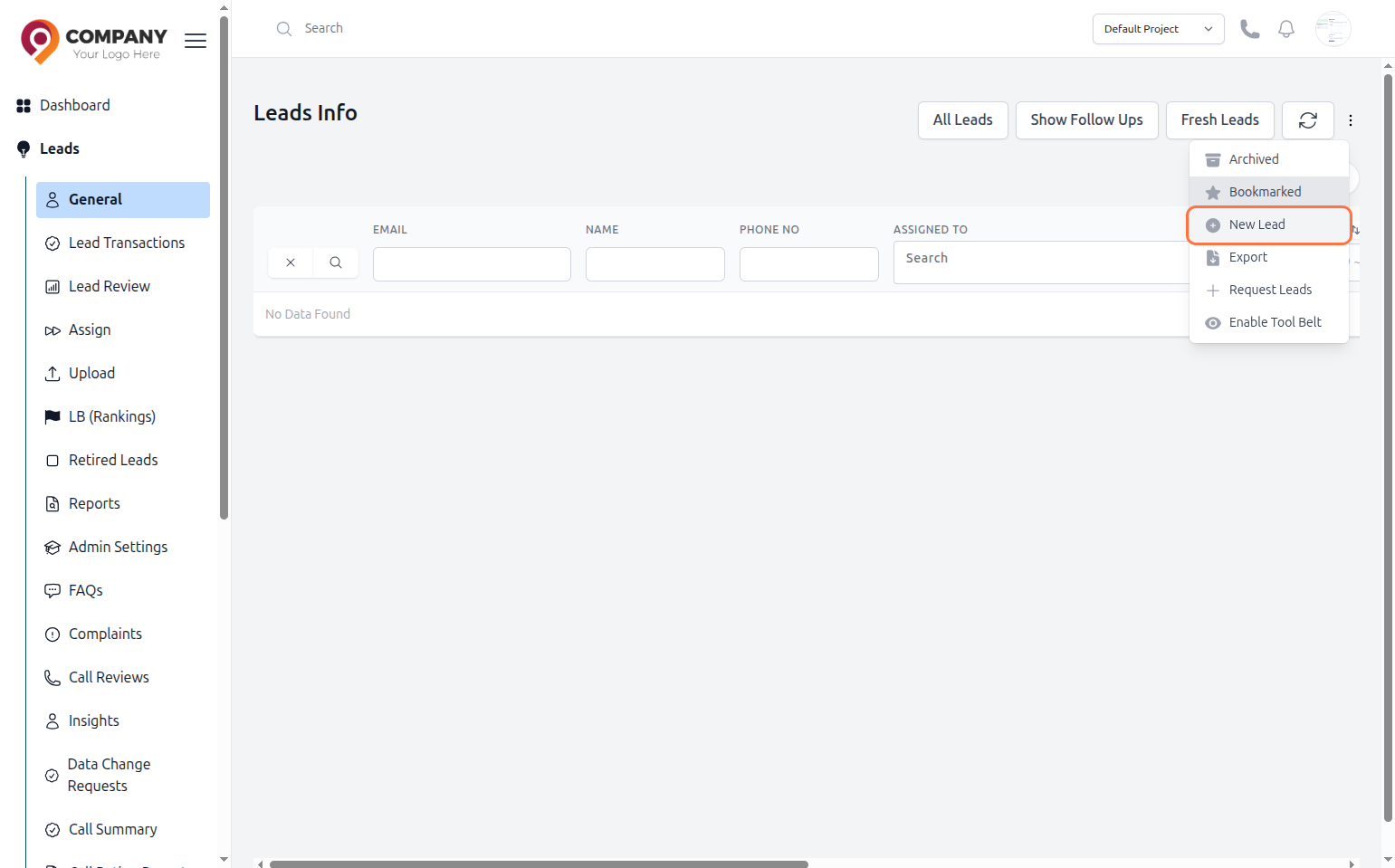
Figure 1: Create New Lead
Requesting a Lead from a Pool
If you've cleared your list and need a new lead, you can ask the system for one. This feature ensures you can stay productive.
- From the Leads -> General dashboard, click the three-dots menu (
⋮) in the top-right corner. - Select Request Leads from the dropdown menu.
- A pop-up window will appear, showing you the list of lead types you are authorized to request (e.g., "English Leads").
- Click the Request button next to the type of lead you want. A new lead that matches the criteria will be assigned to you instantly.
Note
This feature is only available after your manager configures your permissions and assigns specific lead pools to you. If you don't see any options in the pop-up, please contact your manager. You can refer them to the Lead Requests for Agents.
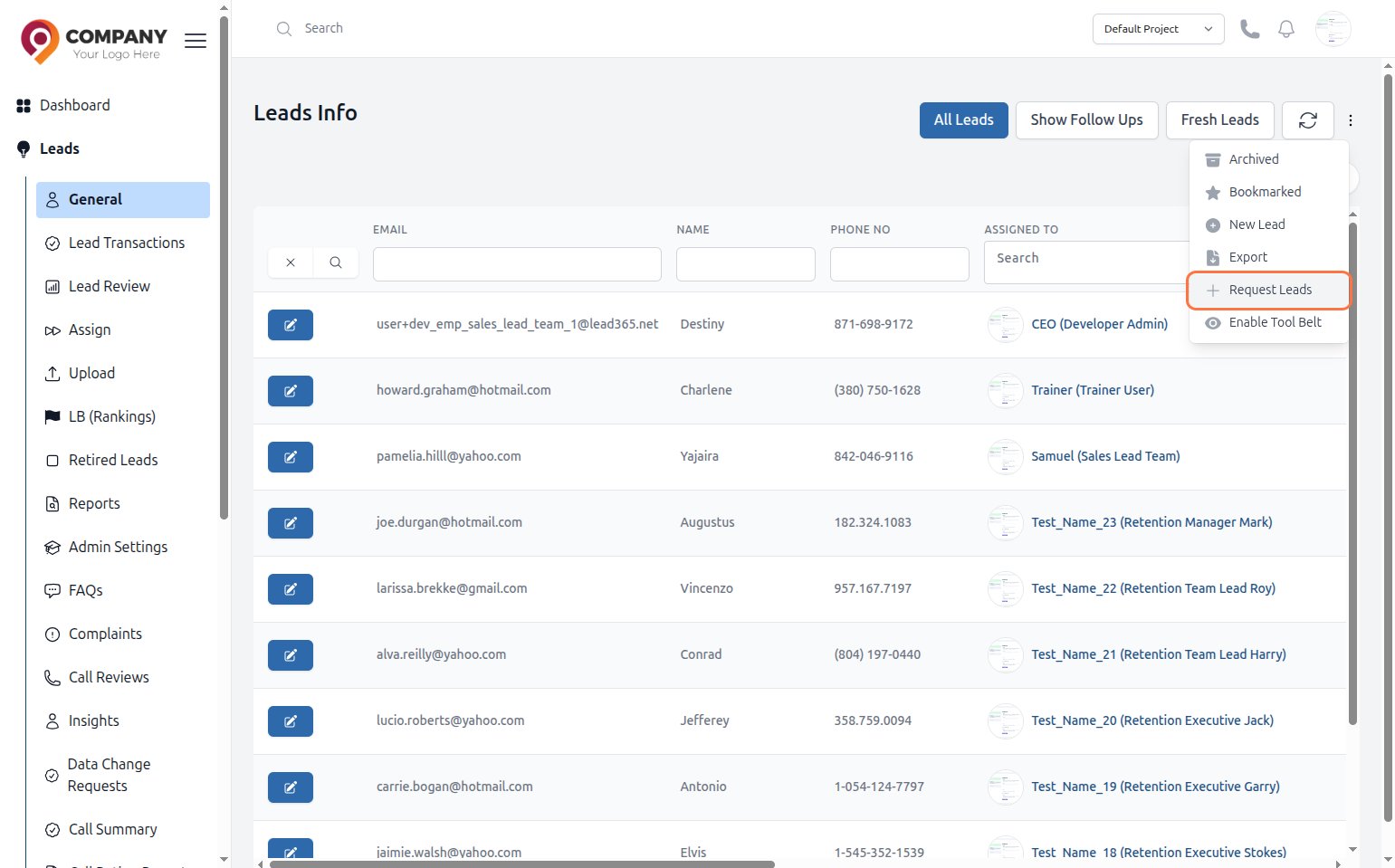
Figure 2: Request New Leads To Assign
Organizing Your List: Bookmarks & Archives
Keep your lead dashboard tidy and prioritized with these tools.
- Bookmarking a Lead: Use the bookmark icon to mark important leads that you want to access quickly.
- Archiving a Lead: Use the archive option to hide old or inactive leads from your main dashboard, helping you focus on current opportunities.
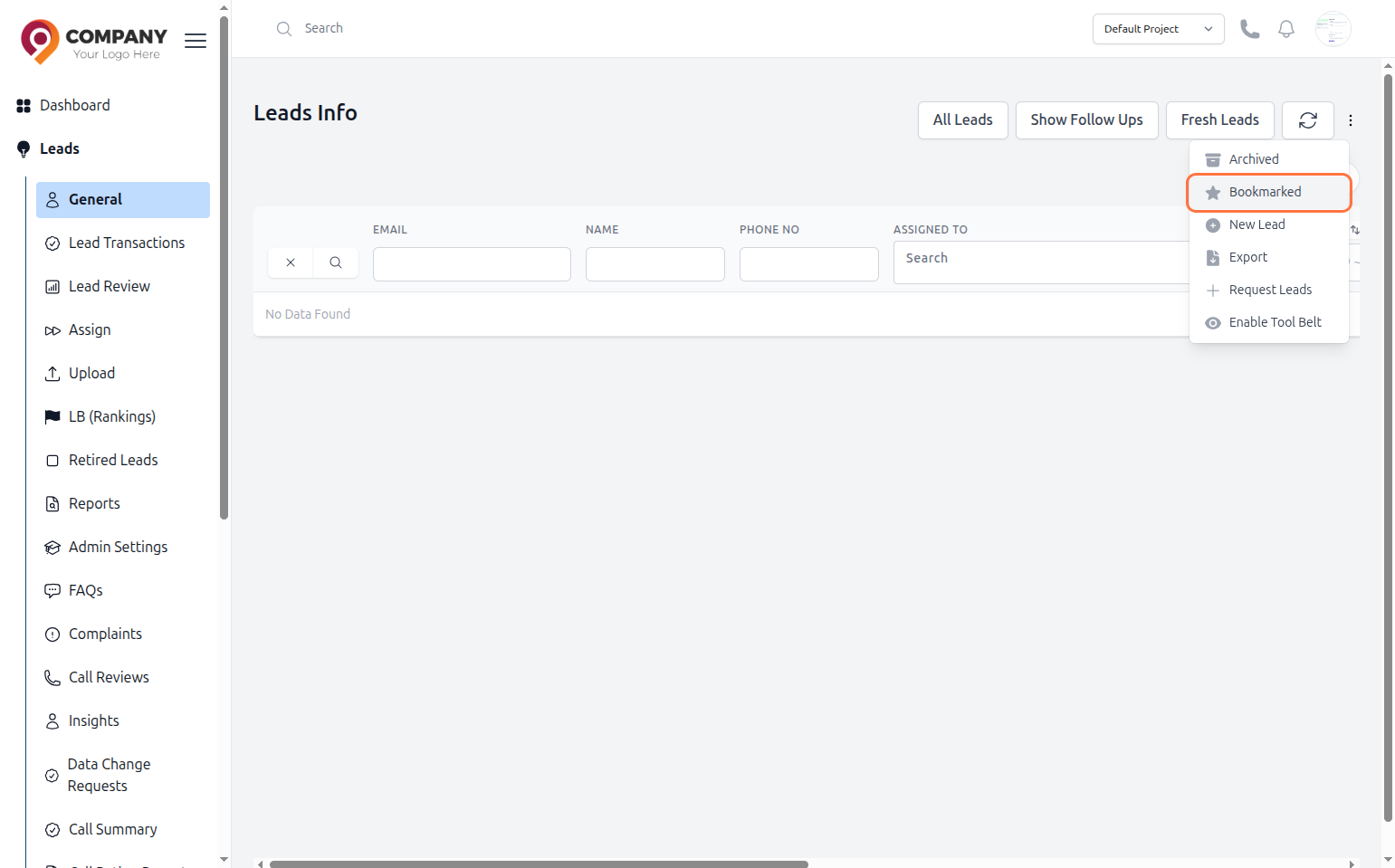
Figure 3: Bookmark a Lead
How to View Your Bookmarked and Archived Lists
To see the leads you've organized:
- Go to the Leads -> General dashboard.
- Click the three-dots menu (
⋮) in the top-right corner. - Select Bookmarked to see your list of important leads.
- Select Archived to see all the leads you have previously hidden.
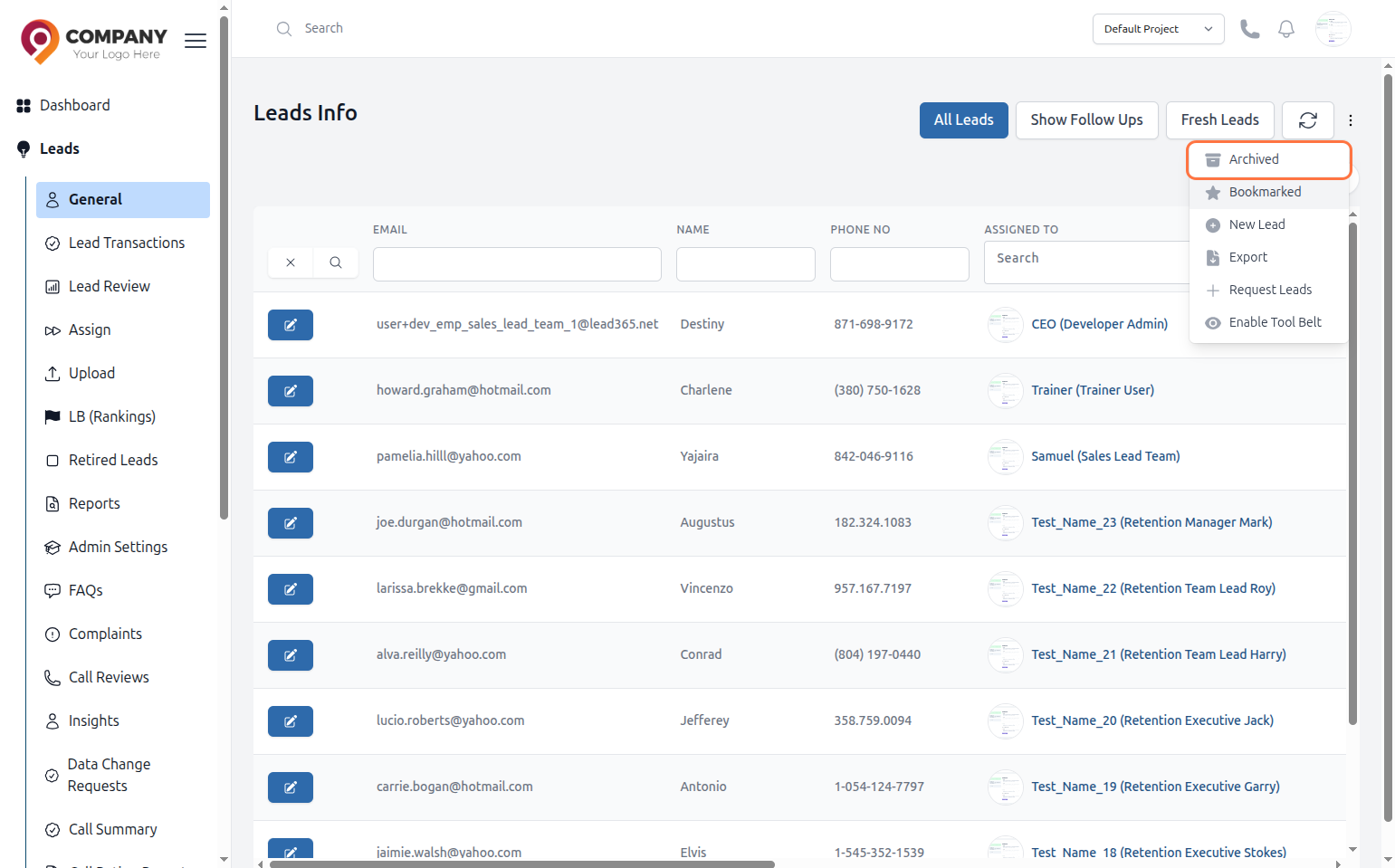
Figure 4: Archive a Lead