🧭 Understanding the Dashboard
Feature 1: Agent Check-In & Check-Out
This feature is your digital timecard, allowing you to officially log the start and end of your workday.
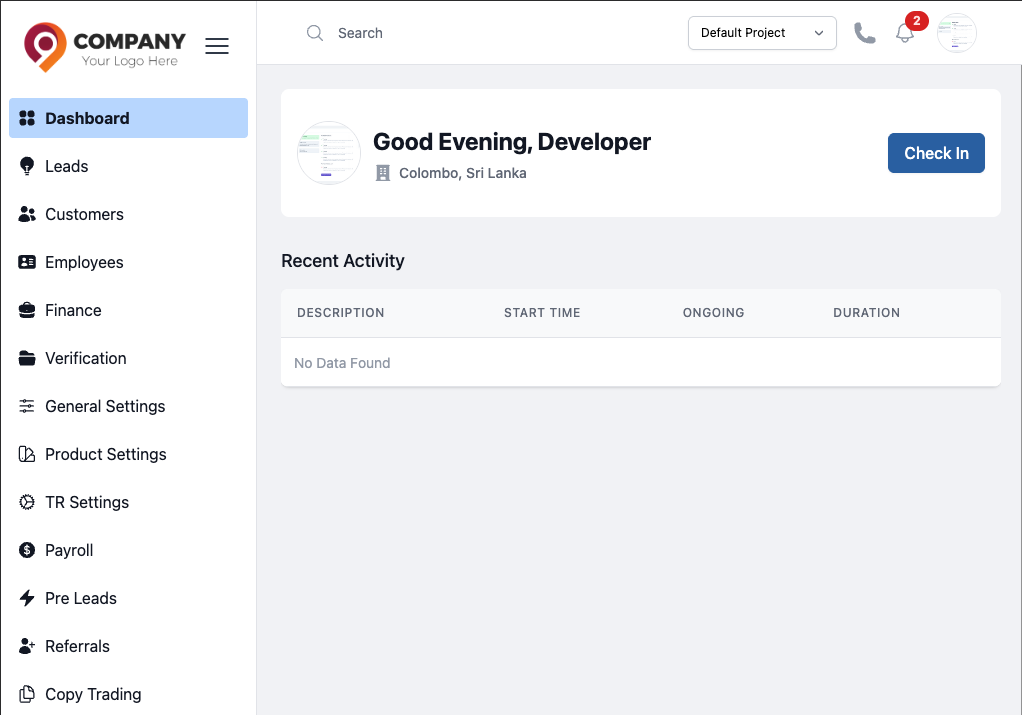
Figure 1: CRM Dashboard
How it Works:
- Check-In: To start your day, click the "Check In" button. This action logs your official start time in the system and marks your status as "Active."
- Check-Out: At the end of your workday, a "Check Out" button will be available. Clicking it will log your departure time, completing your timesheet for the day.
Manager Control: Mandatory Check-In
Your manager has the option to make the check-in process mandatory.
- If this rule is enabled, you must "Check In" at the start of your shift to unlock and access other parts of the CRM, including the Lead Management section. This ensures all work is performed while you are officially on the clock.
- If it is not mandatory, you can access all CRM features without having to check in first.
Feature 2: Break & Activity Management
Once you are checked in, this feature allows you to log breaks and other activities accurately throughout the day.
How it Works:
- Start Activity: Click the "Start Activity" button to open a dropdown menu.
- Select Break Type: Choose the relevant activity, such as Tea, Lunch, or Meeting.
- Log Activity: The system immediately logs the start time for that break. When you return, you will end the activity, and its total duration will be automatically calculated and displayed in your "Recent Activity" log on the dashboard.
Manager Control: Configuring Break Durations
Managers can pre-configure the standard duration for different types of breaks. For example, they can set the default time for a "Lunch" break to 60 minutes. This helps standardize time logging and ensures company policies on break times are followed.
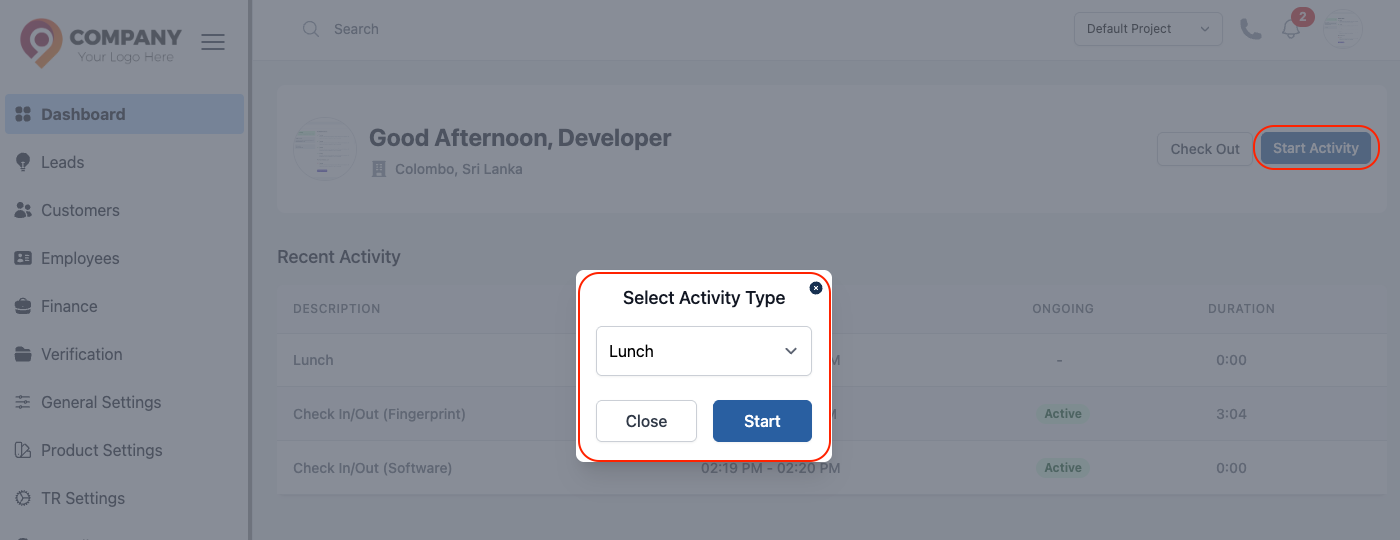
Figure 2: Break and Activity
Quick Tips
- Real-Time Logging: Always remember to start and end your activities (like breaks) as they happen to ensure your activity log is accurate.
- Team Visibility: Your current status (e.g., "Active" or "On Lunch") is visible to your manager, which helps with team coordination and availability.
- Policy Questions: If you're unsure about your company's policy on breaks or mandatory check-in, please contact your manager for clarification.