🛠️ Creating Your Account & Setting Up Your Profile
We're excited to have you on board. Creating your account is the first and most important step towards unlocking a suite of powerful tools designed to streamline your workflow, manage your relationships, and drive your success. This guide will walk you through the simple registration process and show you how to configure your profile for the best possible experience.
Part 1: Your Registration Journey
1. Filling in Your Details To create your account, provide:
-
Name: For personalization and team visibility.
-
Email: Used as your username and for verification.
-
Password & Confirm: Choose a strong password and confirm it.
2. Verifying Your Email Address
- After registration, check your inbox for a verification code and enter it on the verification screen to complete account setup.
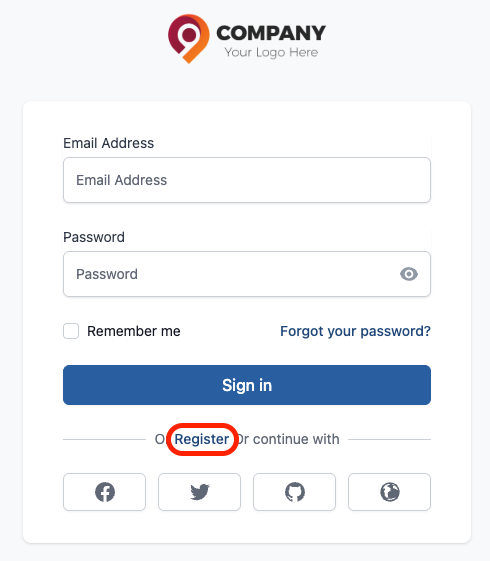
Figure: Registration
Account Activation by a Manager
Your registration is now complete, but you cannot sign in yet. For security purposes, all new agent accounts must be manually activated by a manager or administrator. An alert has been sent to the management team to review your registration.
Part 2: Fine-Tuning Your Profile for Success
Once your account has been activated by a manager and you are able to sign in for the first time, we highly recommend taking a few moments to set up your profile. A complete profile not only enhances your security but also tailors the platform's functionality to your specific needs. You can typically find these options under a "My Account," or "Profile Settings" section.
1. Updating Your Personal Information Your profile is your digital identity within the CRM. Keeping it up-to-date is essential.
- Name, Phone, and Email: You can update your details here as needed. Accurate information ensures that your team can collaborate with you effectively.
2. Managing Your Security: Changing Your Password It is good practice to update your password periodically.
- Navigate to the 'Security' or 'Change Password' section of your profile settings.
- You will typically be asked to enter your current password first, followed by your new password twice to confirm.
3. Customizing Your Experience: Notification Preferences Control how we communicate with you to suit your workflow.
- Email Notifications: Perfect for less urgent updates, weekly summaries, or important account alerts.
- In-App Alerts: Real-time notifications that appear while you are actively using the CRM, ideal for time-sensitive events.
By customizing these preferences, you ensure you stay informed without feeling overwhelmed.